Automated PR Scanning
The Conviso Platform Automated PR Scanning provides instant security feedback directly within your GitHub Pull Requests. unlike traditional CI/CD setups that require manual pipeline configuration, this feature is fully managed and automated.
When a developer opens or updates a Pull Request, the Conviso Platform automatically detects the changes and analyzes only the modified files. This ensures rapid feedback, allowing developers to identify and fix security issues before code is merged.
Key Benefits
- Zero Configuration: No need to write YAML files, configure GitHub Actions, or set up CI/CD pipelines in every repository.
- Speed: The scanner uses differential analysis, focusing strictly on changed files to deliver results in minutes.
- Native Integration: Security findings appear as comments directly in the PR, and status checks can automatically block merges if critical issues are found.
- Secure Execution: Scans run in an ephemeral, isolated environment managed by Conviso, preserving your CI/CD minutes.
Prerequisites
Before enabling PR Scanning, ensure that:
- You have successfully configured the basic GitHub Integration.
- You have Administrator access to the Conviso Platform to adjust integration settings.
- Your repositories are Mapped to Assets within the Conviso Platform.
Enabling PR Scanning
To activate automated scanning for your organization:
Step 1 - Open the organization's setup
In the Conviso Platform, open DevSecOps → Scan Setup and click the row of the organization whose pull requests you want to scan. If it has no setup yet, click New setup and choose it. See Scan Setup.
PR Scanning is configured per GitHub organization. If your company connects several organizations, turn it on in the setup of each organization that should scan pull requests.
Step 2 - Activate the Feature
Turn Conviso PR Scans on: in a new setup, at the PR Scans step; on the setup page, with the switch of the Conviso PR Scans card. Target branches limits the scan to pull requests into the branches it matches; left empty, pull requests into any branch are scanned.
Step 3 - Repository Level Control
Once the setting is on, you control which repositories are scanned in the setup's Repositories card.
- Enable Scanning: Ensure the Enabled switch is on for the repository.
- Disable Scanning: If you turn a repository off, PRs for that repository will be ignored.
- Target branches per repository: In the row menu, Edit branch pattern gives a repository its own target branch pattern.
Changes to these settings take effect immediately for all new Pull Requests or new commits pushed to existing PRs.
The Developer Workflow
Once enabled, the security workflow integrates seamlessly into the developer's daily routine.
1. Triggering a Scan
The process begins automatically when a developer:
- Opens a new Pull Request.
- Pushes new commits to an existing Pull Request.
- Changes the target branch of an existing Pull Request. The scan runs again for the new target branch, and the status check follows it.
2. Status Checks
Immediately after the PR is updated, a Conviso Security Check will appear in the PR timeline with a status of Pending.
We recommend configuring your GitHub Branch Protection Rules to require the Conviso Security Check to pass before merging. This ensures no critical vulnerabilities are introduced into your main branch.
3. Reviewing Results
Once the scan is complete (typically within a few minutes), the status check will update:
- ✅ Success: The Security Gate passed: the findings it evaluated are within the configured thresholds.
- ❌ Failure: The Security Gate failed: the findings it evaluated exceed the configured thresholds.
- ⚪ Neutral: The Security Gate does not apply to this pull request's target branch. Findings are still reported, but they do not block the merge. See Pull Request Target Branches.
In addition to the status check, the Conviso Bot will post a detailed comment on the PR summarizing the findings.
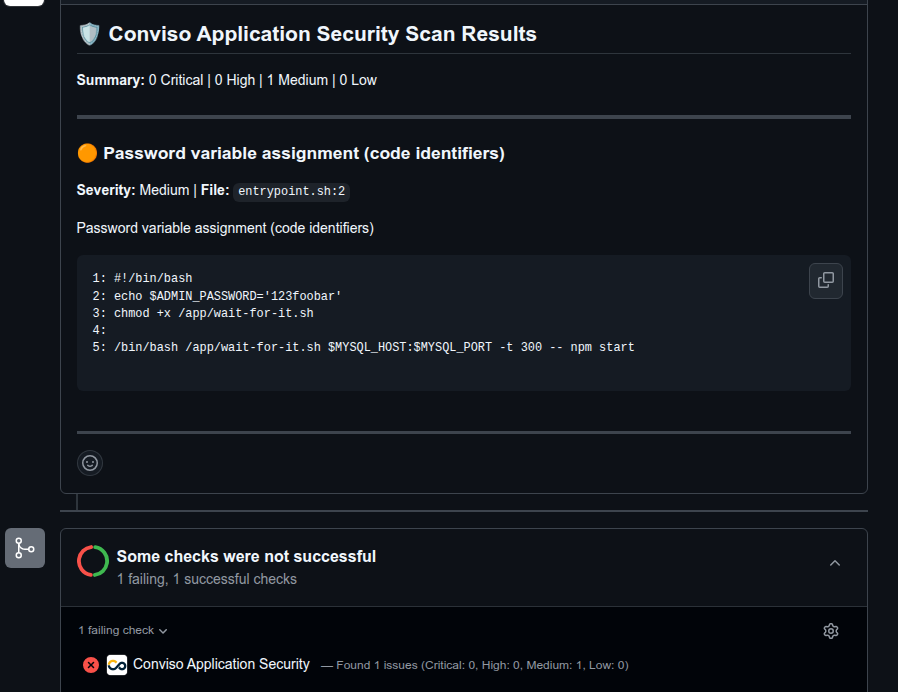
When the Security Gate does not apply to the target branch, the comment says so and still lists the findings:
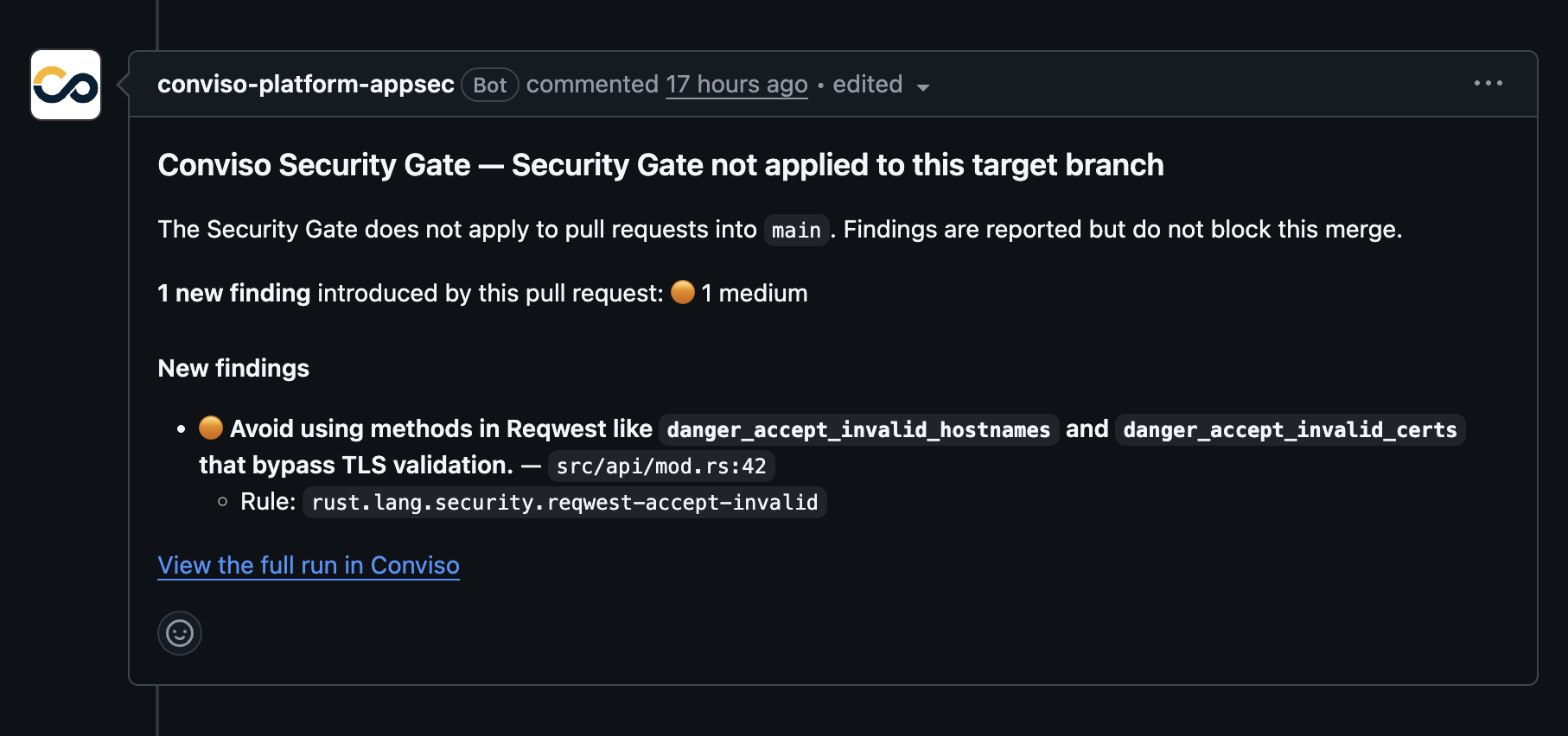
The comment provides:
- Summary: A count of Critical, High, Medium, and Low issues.
- Evidence: The specific file path, line number, and a snippet of the code causing the vulnerability.
- Description: An explanation of the vulnerability type (e.g., SQL Injection, Hardcoded Secret) to help the developer understand the risk.
4. Remediation
Because feedback is provided immediately:
- The developer reads the finding in the PR comment.
- They push a fix to the branch.
- The system automatically detects the update and re-scans the code.
- If the issue is resolved, the status turns Green.
FAQ
Automated Scanning vs. AST Orchestrator
The Conviso Platform offers two ways to scan GitHub repositories. Choose the one that fits your needs:
| Feature | Automated PR Scanning | AST Orchestrator |
|---|---|---|
| Setup | Zero Config (Toggle On) | Low Config (Requires YAML file) |
| Execution Environment | Conviso Cloud (SaaS) | Your GitHub Actions Runners |
| Cost | Included in Platform | Consumes your GitHub Action Minutes |
| Scan Scope | Differential (Changed files only) | Full Scan (Entire repository) |
| Use Case | Rapid feedback during Code Review | Deep analysis & Compliance |
Automated PR Scanning is designed for speed and "Shift-Left" security during the code review process. It does not replace the need for occasional full-repository scans, which can be handled by the Orchestrator or Scheduled Scans.
Why are checks or comments not appearing in my PR?
If you opened a PR but do not see the "Conviso Security Check" or any comments from the bot, please verify the following:
- Is the feature enabled? Go to DevSecOps → Scan Setup in Conviso Platform, open the setup of the repository's organization, and confirm that Conviso PR Scans is On and that Target branches matches the pull request's target branch. Each organization has its own setup.
- Is the specific repository allowed? Check the Repositories card of the setup. The repository must be listed as an asset, and its Enabled switch must be on.
- Are permissions correct? Ensure the installed Conviso Application Security GitHub App has the necessary permissions (specifically
readandwriteaccess to Pull Requests and Commit Statuses). You may need to update the app permissions in your GitHub Organization settings.
I already have a pipeline step running Conviso AST. What happens if I enable PR Scanning?
They operate independently. Automated PR Scanning triggers exclusively on Pull Request events (via the GitHub App), while your existing CI/CD pipeline triggers based on your YAML configuration (e.g., on: push or on: pull_request).
If your pipeline is also configured to run on PRs, both might run simultaneously. This is okay and often desired:
- PR Scanning provides immediate, focused feedback on the "diff" directly in the PR interface.
- Pipeline AST ensures compliance and might run a full repository scan or specific policies required for deployment.
You can choose to keep both for maximum coverage or adjust your pipeline to run only on the main branch (e.g., on: push to main/master) if you want to avoid duplicate checks during Code Review.
Support
If scans are not triggering or you are receiving unexpected errors, please verify that your GitHub App permissions are up to date, or contact our support team for assistance.
Contribute to the Docs
Found something outdated or missing? Help us improve the documentation with a quick suggestion or edit.
How to contribute